
Terms tab
Note: When a regime's Terms tab is selected, the Regime Terms tab appears on the ribbon (see Regime Terms).
The Terms tab is used for configuring Terms variable values at the regime level. Some values are fixed by the regime and are not allowed to be changed in project hierarchies; an example might be the corporate tax rate, which is determined by the regime and affects all projects in the same way. Other values are set at the regime level as defaults, but can be overridden by local values which are set in the Terms settings for project folders in a hierarchy (see Terms).
In order to be settable in regime Terms a variable must have its 'Source' configuration set to 'Term' (see Edit variables).
Terms presets
Multiple Terms configurations can be set up for a regime by using Terms presets. The base configuration is called 'Default'; each preset can be independently edited to override the 'Default' settings. When users are editing Terms in a hierarchy all of the defined Terms presets will be available for selection in addition to the 'Default'. For more information, see Terms presets.
Terms editor
The Terms editor has a list of modules at the left-hand side. The modules are listed in the order in which they have been arranged on the Designer tab, top to bottom and left to right.
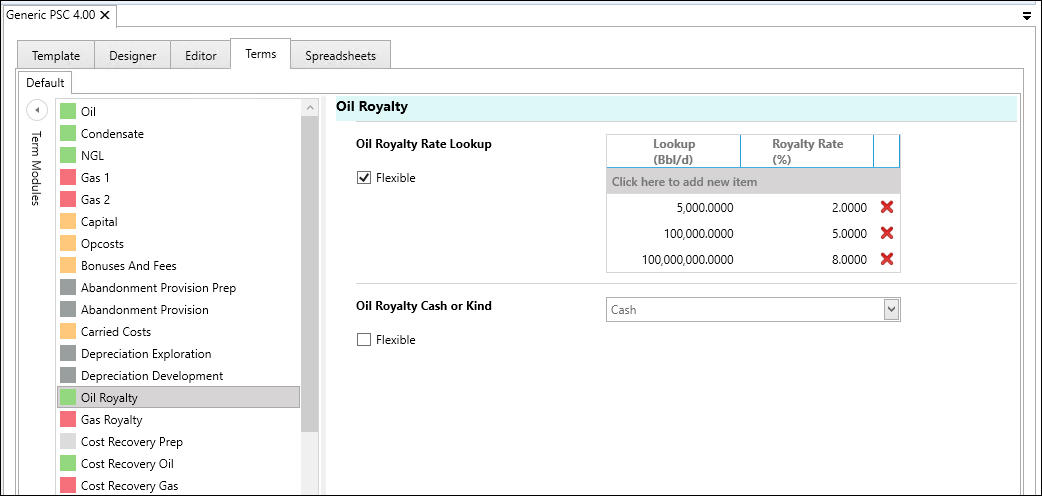
When a module is selected in the list, the Terms variables for that module are shown on the right-hand side. Multiple modules can be selected using the keyboard actions CTRL+Click or SHIFT+Click, and all of the Terms variables will be shown at the same time.
Note: If a Terms variable is used in more than one module, and two or more modules that use it are selected at the same time, it will only be displayed for the first module in the list.
For each Terms variable, its value can be set using the input controls (i.e., data fields or lookup tables). If this value is to be allowed to be overridden in the Terms settings in hierarchies then you enable the check box Flexible.
If Flexible is not enabled then the value will be fixed at the regime level.
To save your changes in the Terms editor, click the Save button in the Regime Terms tab on the ribbon.
For explanation on working with Terms presets in the editor, see Terms presets.